> For the complete documentation index, see [llms.txt](https://docs.rpcfast.com/llms.txt). Markdown versions of documentation pages are available by appending `.md` to page URLs; this page is available as [Markdown](https://docs.rpcfast.com/rpc-fast-saas-evm/how-to-add-polygon-to-metamask.md).
# How to Add Polygon to MetaMask
Step-by-step guide for dApp developers on adding Polygon to MetaMask.
This guide will teach you key features of the Polygon chain and how to add Polygon to MetaMask. You’ll also be able to configure your wallet to interact with your dApp on the Polygon mainnet or testnet and add custom tokens to MetaMask.
### Installing and setting up MetaMask
Millions of users trust MetaMask as their crypto wallet of choice. It serves as a gateway to dApps, with the browser extension connecting Web2 and Web3 to create seamless transactions. Before you can add Polygon to MetaMask, set up a wallet with these simple steps:
**Step 1** - Download MetaMask for your browser of choice from the [official website](https://metamask.io/download/). BE CAUTIOUS and ensure you get the real extension and avoid phishing sites.
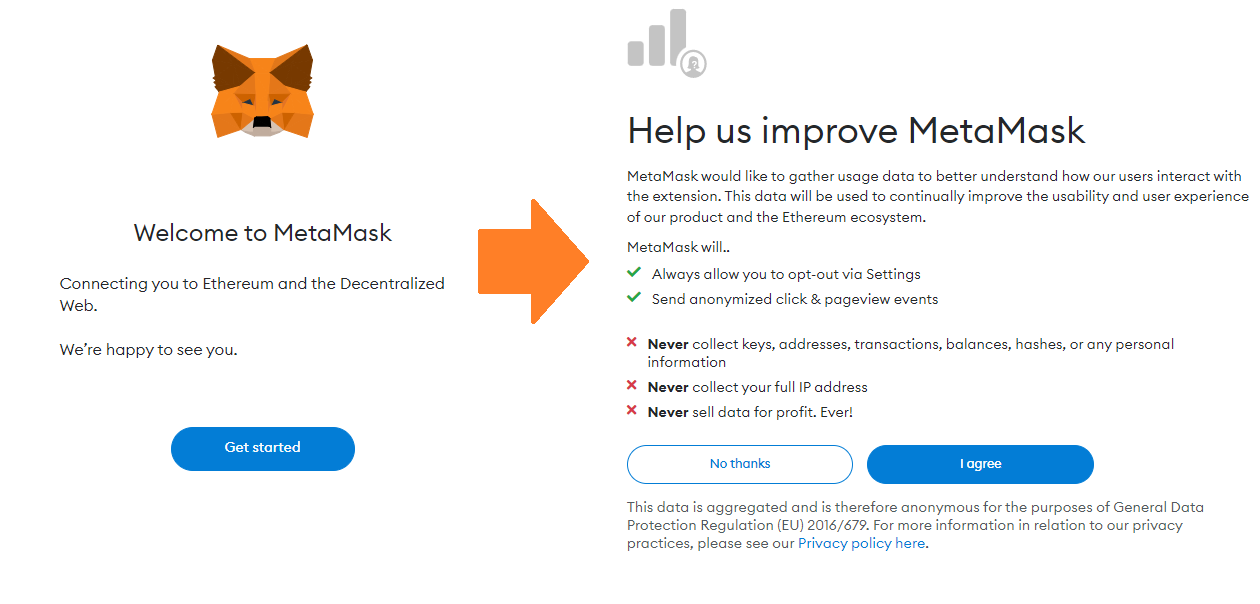
**Step 2** - Start configuring your wallet. Note that whether you agree to share data or not won’t affect your experience.
**Step 3** - Create a new wallet and come up with a password. Write it down or use a robust password manager.
**Step 4** - Get your secret recovery phrase and ensure you store it securely. Remember that it cannot be restored if you lose it.
**Step 5** - After you confirm your recovery phrase, your MetaMask is all set.
However, you’ll be connected to Ethereum mainnet by default. From here, you need to add Polygon network to MetaMask:
### **Configuring the Wallet**
Time to make the wallet use RPC Fast. Navigate to the top and add a new network to your list:
Now, log into your [RPC Fast Dashboard](https://control.rpcfast.com/) to find your API key and endpoint. It will look like this:
Copy the endpoint with your API key and use it as the RPC URL. Add details to MetaMask:
* Network Name: Polygon Mainnet
* New RPC URL:
* Chain ID: 137
* Currency symbol: MATIC
* Block explorer URL:
Your final result will look like this:
#### **Alternative Ways to Add Main Chain & Testnet**
If you want to connect directly to Polygon, use or press the "Add Polygon Network" button in the footer of the [Polygonscan ](https://polygonscan.com/)website.
To connect to the Mumbai Testnet, use the RPC with Chain ID 80001, MATIC currency, and in the block explorer field.
Your Polygon network MetaMask link is in place. Now you can use the wallet to interact directly with your dApp both on the mainnet and in testnet environments.
### **Adding Polygon tokens to MetaMask**
After adding Polygon to MetaMask, you will already see MATIC tokens in your wallet. MetaMask also makes it easy to add new tokens, for example, if you’re minting your own in a dApp. Here’s how you can do it in two steps:
1. Navigate to the bottom of your wallet and hit Import Tokens.
2. Specify your address, token symbol, and decimal. In this case, it’s TST on a test contract.
Now that you’ve finished the Polygon MetaMask setup, you can allow users to interact with your dApp directly and unlock the full potential of Web3 with the help of RPC Fast.
**Сonclusion**
Setting up Polygon on MetaMask allows you to bridge the gap between Web2 and Web3, interacting with your dApp from a browser extension. All you need to do is create a wallet, connect it to your RPC Fast API, and add any tokens you plan to work with.
From now on, you can interact with the chain and build amazing things with the help of Polygon’s robust scaling and lightning-fast transaction speed.
---
# Agent Instructions
This documentation is published with GitBook. GitBook is the documentation platform designed so that both humans and AI agents can read, navigate, and reason over technical content effectively. Learn more at gitbook.com.
## Querying This Documentation
If you need additional information that is not directly available in this page, you can query the documentation by asking a question.
Perform an HTTP GET request on the following URL with the `ask` and `goal` query parameters:
```
GET https://docs.rpcfast.com/rpc-fast-saas-evm/how-to-add-polygon-to-metamask.md?ask=&goal=
```
`ask` is the immediate question: it should be specific, self-contained, and written in natural language.
`goal` is what the user is ultimately trying to achieve, the reason they need the answer. Sharing it helps GitBook give you a better, more relevant answer. A goal is most helpful when it describes the outcome the user wants rather than restating the question. For example, with `ask=how do I create an API token`, a goal like `automate deployments from our CI pipeline` lets GitBook tailor the answer to that use case.
The response will contain a direct answer to the question and relevant excerpts and sources from the documentation.
Use this mechanism when the answer is not explicitly present in the current page, you need clarification or additional context, or you want to retrieve related documentation sections.
.png?alt=media)
.png?alt=media)
.png?alt=media)
.png?alt=media)
.png?alt=media)
.png?alt=media)
.png?alt=media)
.png?alt=media)
.png?alt=media)
.png?alt=media)
.png?alt=media)